
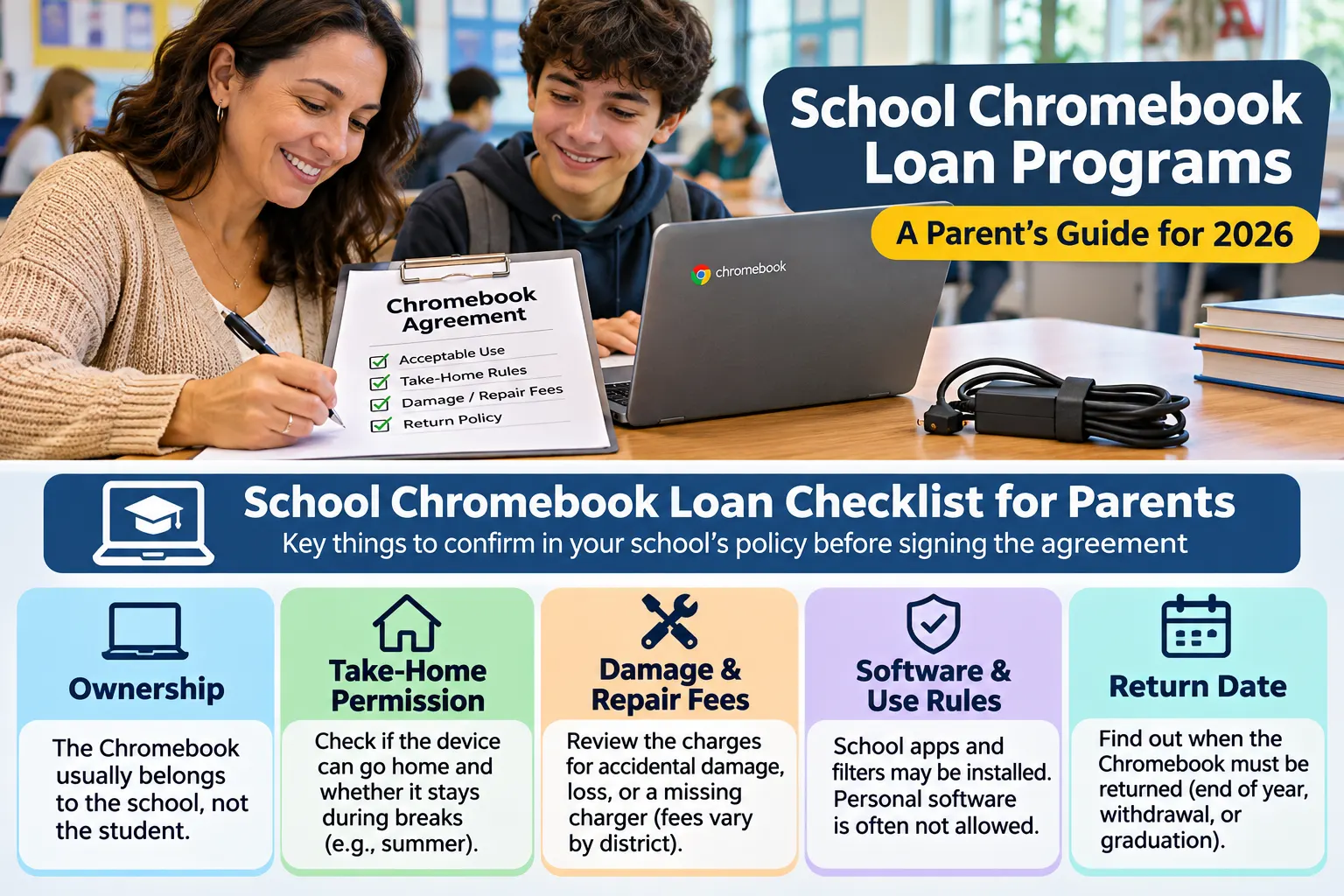
Your child’s school may announce a Chromebook program, but the agreement raises real questions: Who pays if the screen cracks? Can it stay home over summer? Here is how to find answers in the school’s own policy.
How School-Issued Chromebooks Work
Chromebooks run ChromeOS and focus on web-based tools. School technology staff may manage apps, student accounts, security settings, and internet filtering.
There are two common arrangements:
- Classroom or cart access: Students share school computers during lessons. The devices generally remain on campus.
- Assigned take-home device: A specific Chromebook, often with a numbered asset tag, is checked out to a student for schoolwork. It remains school property unless the district explicitly says otherwise.
For example, Richland School District's Chromebook guidance says district-installed software must remain in place, students cannot install personal software, and school devices can be inspected. Students must also bring their devices charged to class. A managed Chromebook is not a private family computer.
A Chromebook does not necessarily include home internet. Ask whether the district has separate hotspot lending or another connectivity option before assuming assignments will work away from school.
Which Students May Receive a School Device
Grade level can make a bigger difference than household income. Compare these actual 2026–27 district examples:
- Warwick Valley Central School District, New York: Grades K–4 use devices kept in district learning spaces, while students in grades 5–12 receive assigned Chromebooks.
- Godley Independent School District, Texas: Pre-K through eighth-grade students use classroom Chromebook carts rather than individually assigned devices. High-school students receive assigned Chromebooks, including new freshmen and students entering during the school year.
- P.K. Yonge Developmental Research School, Florida: Its 2026–27 conduct procedures say students in grades 6–12 are issued Chromebooks and are expected to bring them to school charged each day.
A school Chromebook is not a national benefit. Districts may issue devices for instruction without checking SNAP or Medicaid status. Enrollment alone does not guarantee take-home access everywhere.
For newly enrolled students, ask when devices are issued and what is available in the meantime.
Take-Home Policies and Parent Agreements
Take-home policies cover charging, storage, accounts, repairs, and returns.
Warwick Valley's 2026–27 handbook requires parents and students to sign its Chromebook policy acknowledgment before a device is issued. Its students are expected to bring Chromebooks back to school charged. P.K. Yonge's 2026–27 procedures require families to acknowledge Chromebook, internet-applications, and acceptable-use agreements before checkout.
Before signing, locate the answers to these questions in writing:
- Who owns the Chromebook? A checkout at no purchase price does not transfer ownership.
- Can it go home, and during which breaks? Godley ISD says high-school students keep their assigned devices over summer; other schools collect devices every year.
- Can anyone else use it? School accounts and devices may be restricted to the assigned student.
- What is monitored or blocked? Check approved software, filtering, browsing records, and the district's student privacy notice.
- What comes in the package? Note the charger, case, device ID, and visible wear before leaving the checkout desk.
Save the agreement and support contact. Do not remove district asset tags.
Parent Checklist Before Chromebook Pickup
A district handbook describes the rules, but the student's actual checkout can add questions about the specific device and school year. Check each item with the school technology desk or media center before signing. Do not submit a child's personal details to unofficial laptop-offer websites.
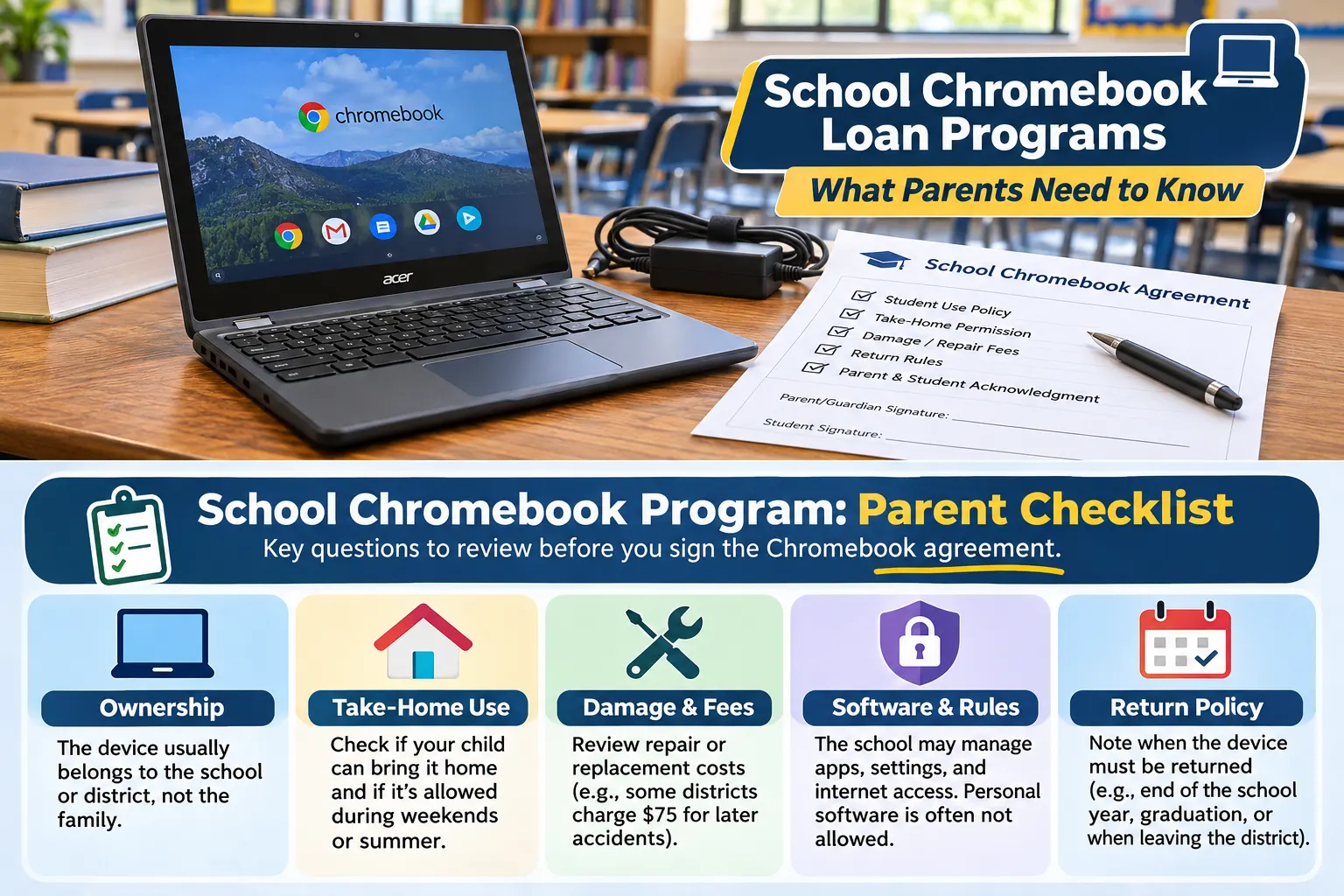
- Eligibility and grade: Confirm whether the assigned student can take a Chromebook home or only use a shared classroom device.
- Device and accessories: Record the asset tag, charger, case and any existing damage when the device is issued.
- Signed agreement: Keep a copy of the district's current 2026–27 rules, including expected student and guardian responsibilities.
- Fees and repairs: Ask how accidental damage differs from misuse, whether coverage is available, and who approves repairs.
- Return dates: Confirm terms for summer break, withdrawal, transfers and graduation. Ask whether accessories must be returned together.
- Software and internet: Check school filters, permitted websites, take-home Wi-Fi, hotspot availability, and any required classroom tools.
Damage, Repair, Replacement and Return Rules
A cracked screen, lost charger, and stolen device can carry different charges. There is no national replacement fee.
For a concrete comparison, Warwick Valley's 2026–27 handbook lists no charge for the first accidental-damage incident in a school year, $75 for the second or third, and $150 for the fourth or later. In contrast, Eatonville School District, Washington says its device coverage does not charge for covered accidental damage, but lost chargers carry a $35 replacement charge and intentional damage can lead to fines. Those are district-specific published rules checked November 5, 2026, not prices you should assume at another school.
Report problems promptly to school staff. Avoid outside repairs without district authorization; ask whether a loaner is available during repairs.
Returns vary, too. P.K. Yonge instructs students to return Chromebooks at the end of each school year or when leaving the school. Godley ISD lets assigned high-school students keep theirs over summer but requires returns for graduation, withdrawal, and certain transfers. In Warwick Valley, graduating or departing students must return the device and accessories.
Worked example: Reading the agreement before signing
Hypothetical family using an actual published policy, not a report of an individual student's experience.
Suppose a parent of a sixth grader at Warwick Valley receives a Chromebook sign-off form. They check the district's 2026–27 policy and confirm that grades 5–12 are issued devices, that a parent/student acknowledgment is required, and that the Chromebook must be returned when the student leaves the district or graduates.
They note the damage schedule: first accident free, second and third incidents $75, fourth or later $150. At pickup, they check the charger and asset tag, then ask whom to contact about damage. Only the district decides how a real incident is classified or billed.
School Chromebook vs. Personal Laptop
A school Chromebook can handle assigned lessons, but it is not interchangeable with a family-owned laptop.
| Option | Who owns it? | Home access | Main limits and costs to check |
|---|---|---|---|
| School-issued Chromebook | School or district | Only when the school permits take-home use | Managed apps, filtering, signed agreement, damage/loss charges, return rules |
| Public library laptop loaner | Library | Depends on the library's lending program | Library card, availability, loan periods, overdue or replacement policies |
| Personally owned refurbished laptop | Household after purchase | Yes | Purchase price, operating system, battery, warranty, repair costs, internet service |
A refurbished personal computer may suit specialized software or family use. First ask whether the school Chromebook handles the actual coursework.
For a wider look at donations, school technology, and nonprofit options, see our guide to laptop help for students.
Home Internet, Privacy, and School Device Restrictions
Take-home permission does not mean a Chromebook can be used like an unrestricted family computer. Richland School District says its installed software must remain on student Chromebooks and personal software cannot be installed without authorization. The district also explains that school devices may be inspected. Families should read their own school's student technology and privacy notices before allowing personal accounts or sensitive files on a managed device.
Some school filtering and account-management rules remain in place outside the classroom. P.K. Yonge's published procedures explain that its Chromebooks continue to have school network filtering and monitoring when connected off campus. Ask the school when monitoring occurs, which sites are blocked, how to report a problem and what the district allows the student to save.
Home broadband and hotspots are separate from the Chromebook loan. When internet access is unavailable, ask the teacher which assignments can be completed offline, whether a school hotspot is available, or whether computer time can be arranged at the campus or a nearby public library. Families can compare public library Chromebook loans as a separate option. A library loan has its own card, return and damage rules, and may not be suitable for school-managed coursework.
Summer Break, School Transfers, and Graduation
Never assume that a device stays with the student indefinitely. Godley ISD says assigned high-school Chromebooks may go home over summer, but they must be returned when students graduate, withdraw or make certain transfers. P.K. Yonge requires school-owned Chromebooks back at the end of each school year or on termination of enrollment. These different rules show why the exact district agreement matters.
Before a student changes schools, ask the technology office whether the Chromebook and charger need to be returned to the issuing campus, and get a receipt for returned equipment if the district provides one. If the device is being repaired, ask whether the student can use a temporary loaner. For an older student entering college, the requirements change: read our college laptop lending guide to compare campus libraries, IT desk loans and semester return deadlines.
What Parents Can Ask When a Device Is Unavailable
If your child has homework due and no usable device, start at the school rather than a website advertising “guaranteed free Chromebooks.” Send a brief message to the teacher, office, or technology coordinator:
“My student does not currently have a working device for assigned schoolwork. Is there an in-school computer, a temporary Chromebook loaner, or another way to complete the assignment? If take-home technology is available, what agreement and pickup process should we follow?”
Ask about a classroom device, daily loaner, repair exchange, computer lab, or non-digital assignments. If home Wi-Fi is the barrier, check for hotspots or offline work. For assistive technology or accommodations, contact the school’s special education or Section 504 team.
If school support is unavailable, check library loans or refurbished computers. Verify third-party providers with our laptop application checklist. Adult family members studying online face different rules; see online high school diploma and laptop options.
Frequently Asked Questions
Are school Chromebooks free for students?
Often there is no purchase price, but the device belongs to the school. Loss, damage, or missing accessories may trigger charges.
Does every K–12 student get a Chromebook to take home?
No. Warwick Valley, Godley ISD, and P.K. Yonge use different grade-level arrangements. Check your child's actual campus and school-year policy.
Do parents have to sign a Chromebook agreement?
Some programs require parent and student acknowledgment before issuing a device. Warwick Valley and P.K. Yonge explicitly describe that requirement in their 2026–27 policies.
Can a student keep a school Chromebook after graduation?
Not unless the school explicitly transfers ownership. Warwick Valley and Godley ISD require devices to be returned at graduation or when the student leaves the district.
What if my child's Chromebook is broken or stolen?
Report it immediately to school staff. Ask about school-managed repairs, a temporary loaner, insurance or coverage, and any required theft documentation. Do not assume accidental damage is automatically billable or always free.
Does the school Chromebook include free Wi-Fi at home?
No. Internet service is separate. Ask about hotspots or approved offline assignments.
The bottom line: Find the current district Chromebook handbook, confirm whether your child's grade receives an assigned device, and read the agreement before signing. Record the return rules and fees, then keep the school's technology contact handy. That is more reliable than any general promise of a “free school laptop.”
Official Sources and Verification
Editorial scope: This article independently compares published U.S. school district technology rules. GovtFreeLaptops.com does not supply, reserve or approve Chromebooks. Policies change, and a district is the final source for your student. For more options, browse our laptop assistance resource center.
All source pages below were checked on November 5, 2026. These are examples of local policies, not nationwide guarantees.
- Warwick Valley Central School District: About Chromebooks (2026–27 handbook)
- Godley Independent School District: Chromebook Program (2026–27 resources)
- P.K. Yonge: Code of Student Conduct Procedures, 2026–27
- Richland School District: Chromebook Use Guidance
- Richland School District: Chromebook FAQs
- Eatonville School District: Chromebook Coverage and Insurance